How to enable Privacy Policy, Email Consent & Property Website URL in Qobrix CRM
Learn how to update your property website URL, add your privacy policy link, and enable email consent settings in Qobrix CRM. This guide helps ensure your email communications are properly configured, compliant, and linked correctly so leads can access property pages directly from automated emails.
1
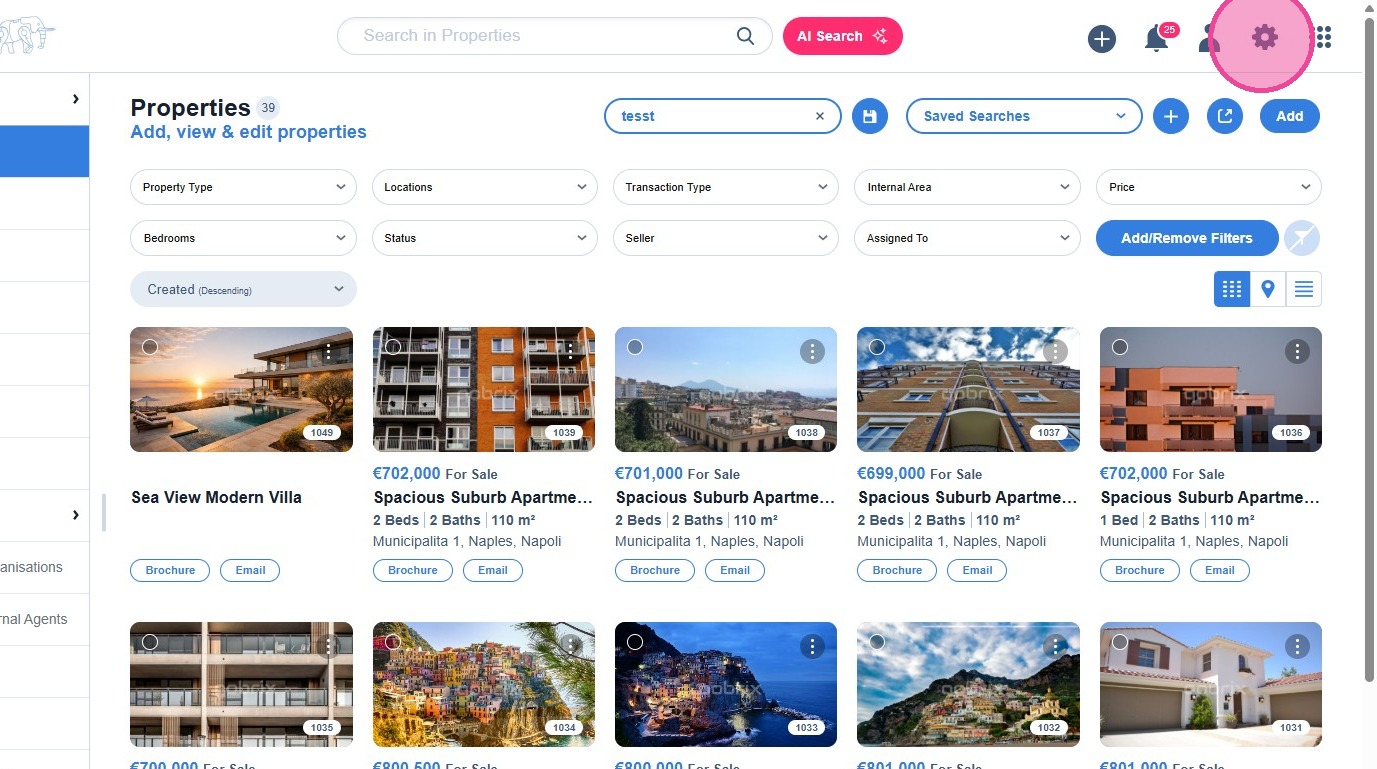
Click on the settings icon.
2
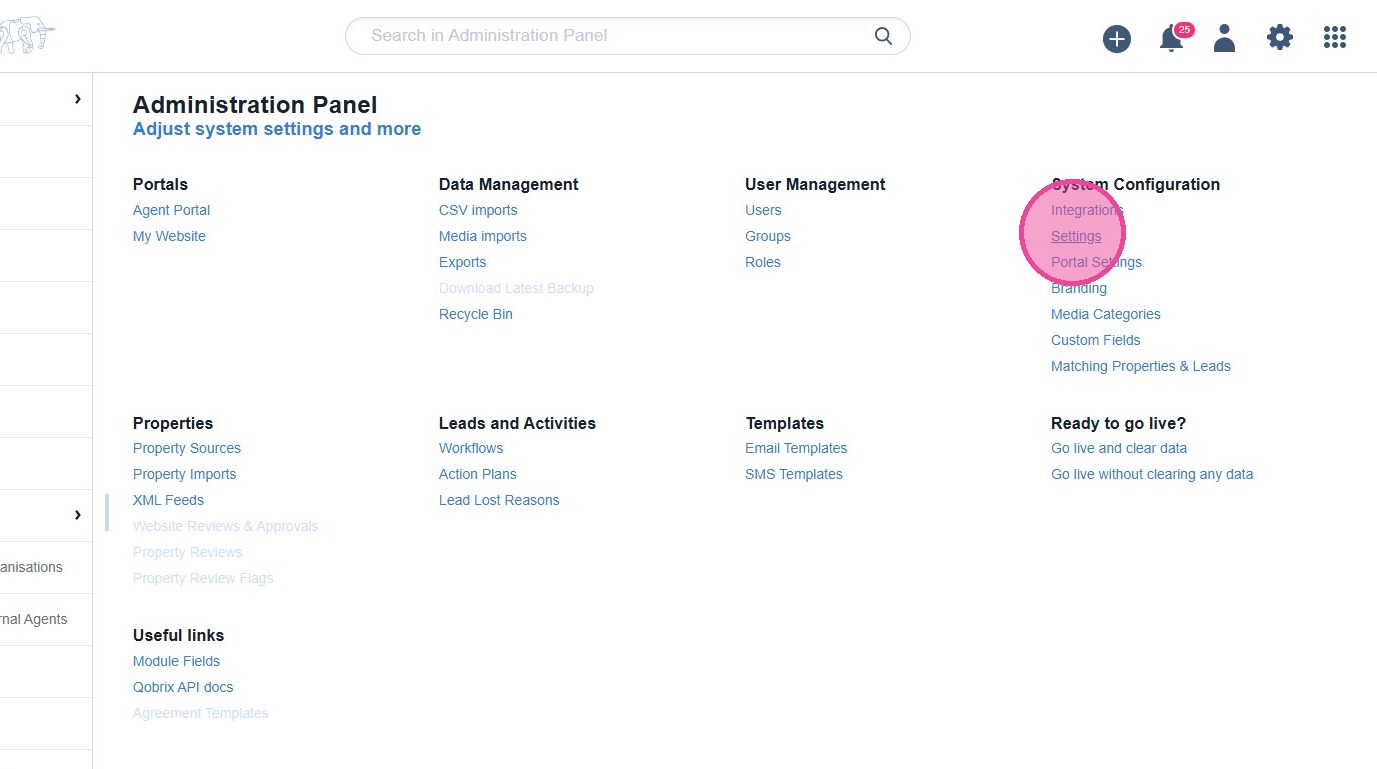
Click "Settings".
3
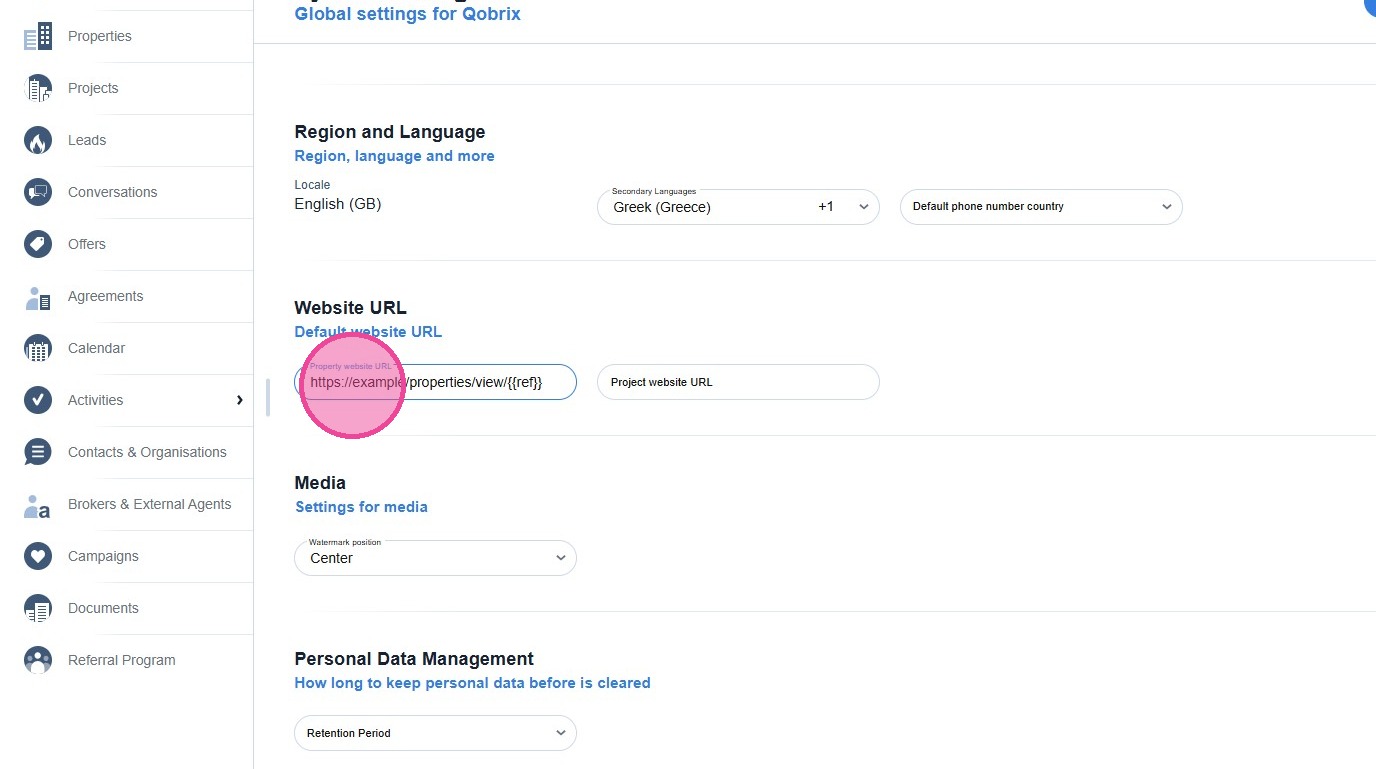
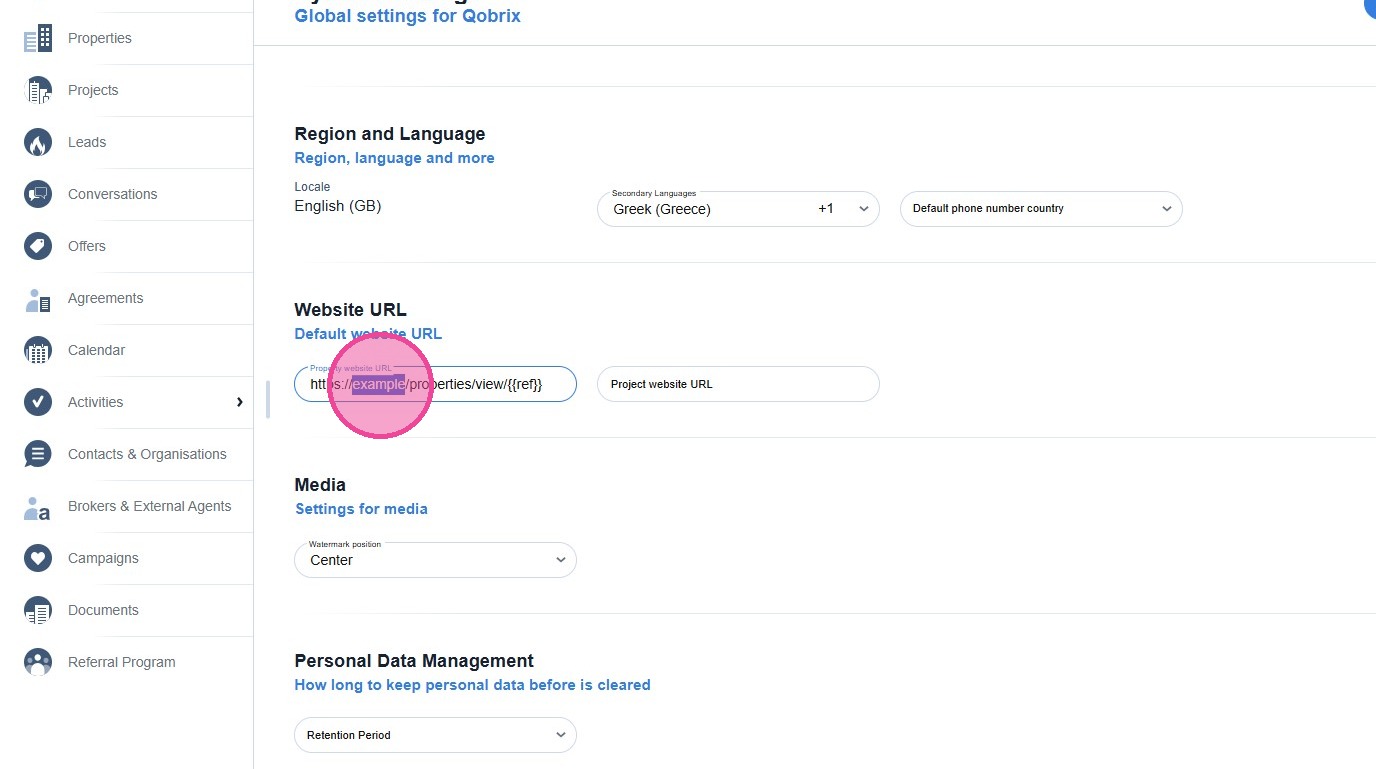
Click the "Property website URL" field.
- Enter your property portal URL in the following format:
- https://example/properties/view/{{ref}}
4
Replace example with your actual domain name.
- Qobrix will automatically replace {{ref}} with the unique property reference number when generating email links.
- This allows leads to click through directly to any property featured in an email.
5
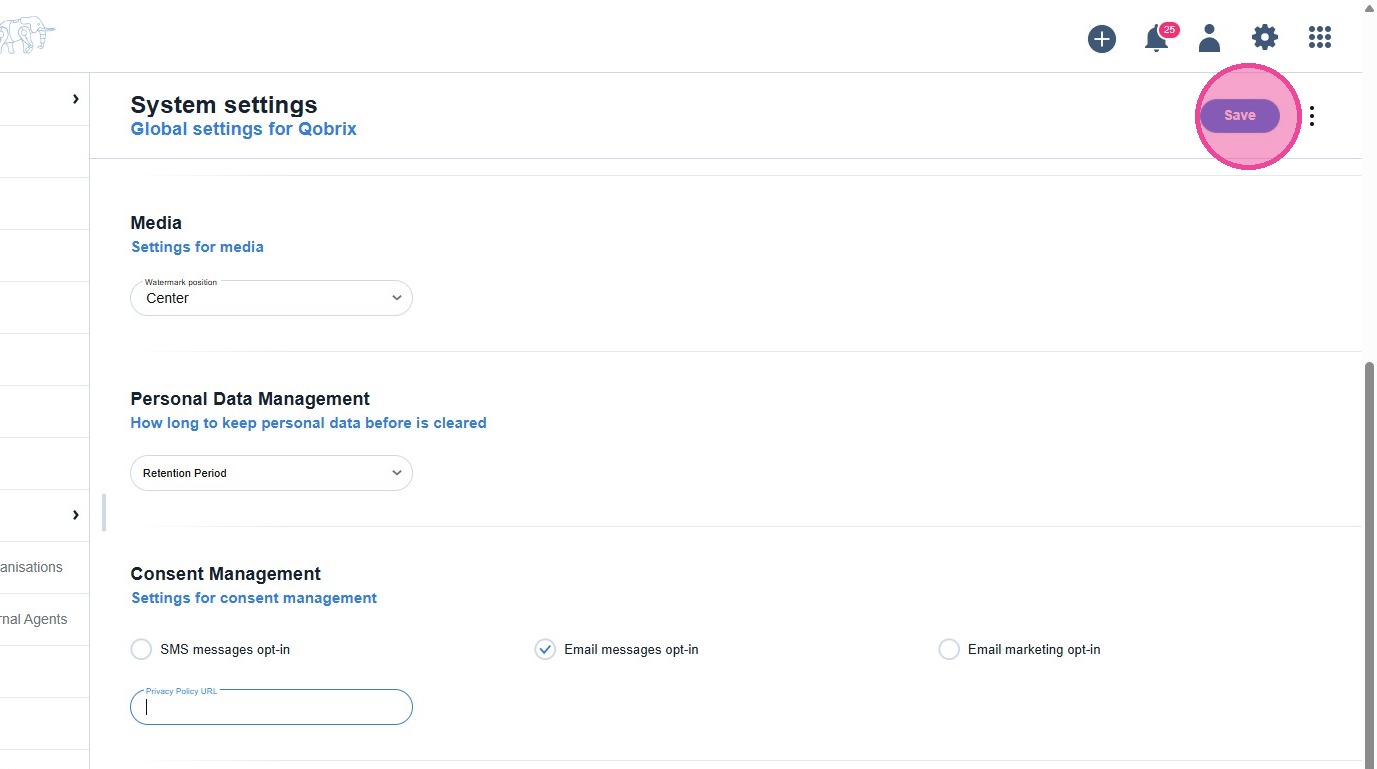
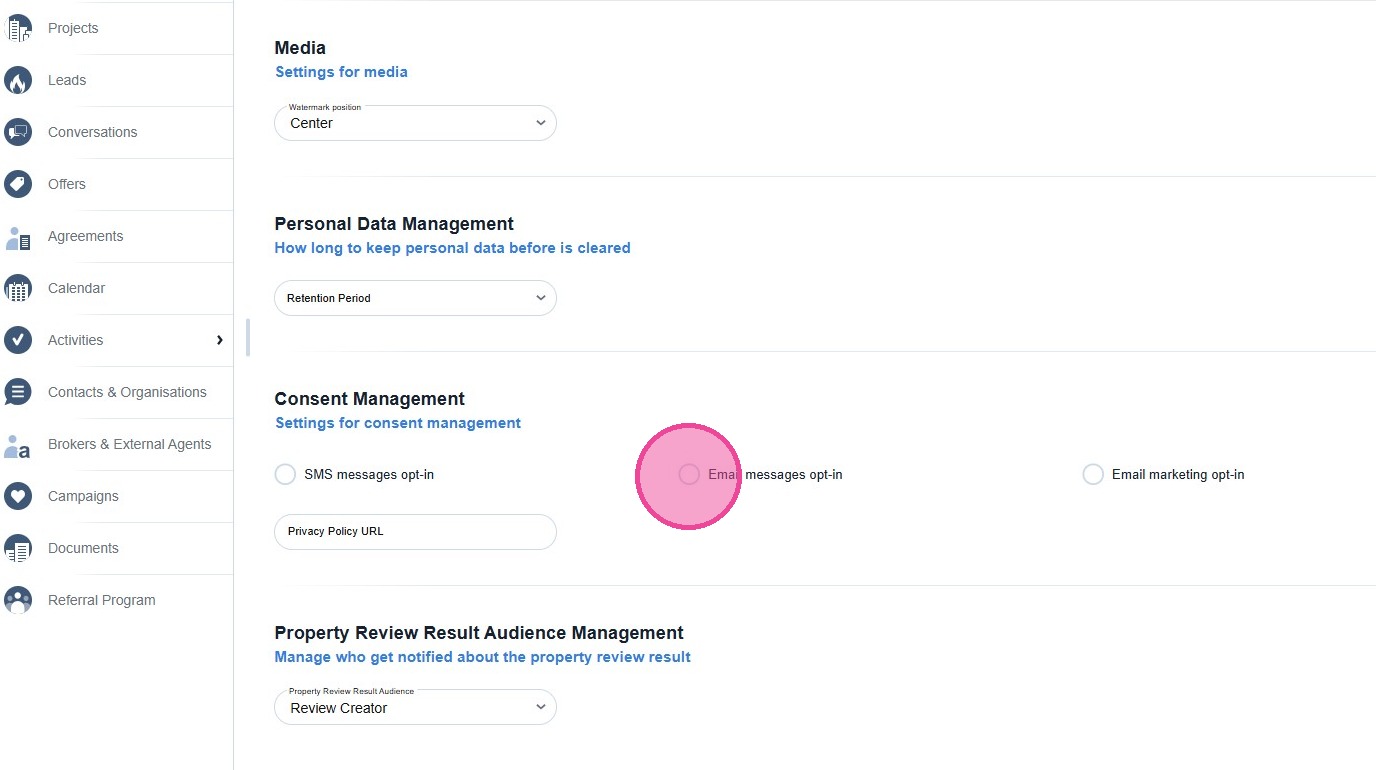
Scroll down from the "Website URL" section and locate Consent Management.
- Find the Email Messaging Opt-in toggle and enable it.
6
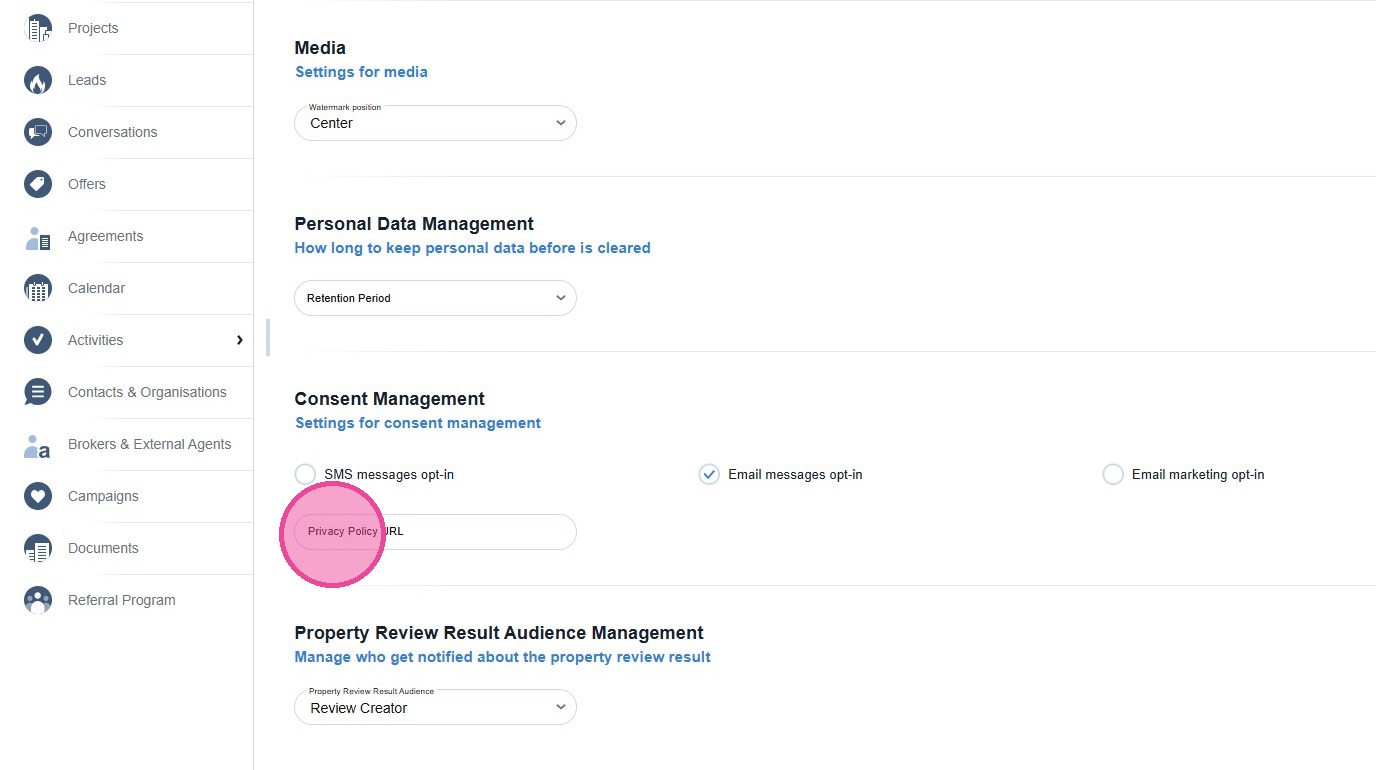
Enter the full URL of your agency's privacy policy page.
- This link is embedded in the consent request email that new leads receive, helping keep your communications compliant with data protection regulations.
- Legal Note: Enabling Email Messaging Opt-in means the system will automatically request consent from new contacts before sending them marketing emails.
- Ensure your privacy policy is publicly accessible at the URL you provide.
7
Click "Save".