
How to set Email Alert Consent on Lead Records
Learn how to update lead record settings in Qobrix CRM to enable Matching Properties and Price Drop email alerts for individual leads. This guide explains how to edit lead records, activate the relevant alert options, and understand how consent is handled for new and existing contacts.
1
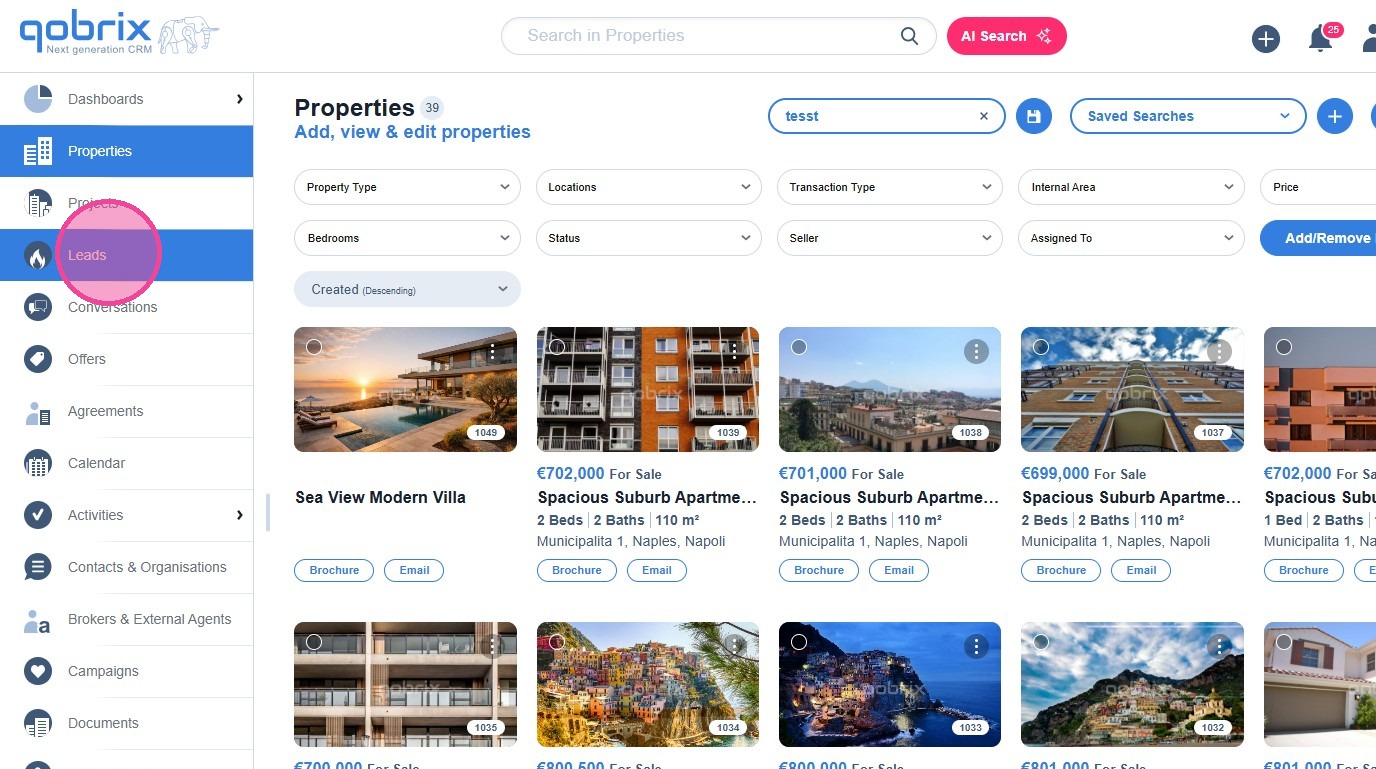
Click "Leads".
2
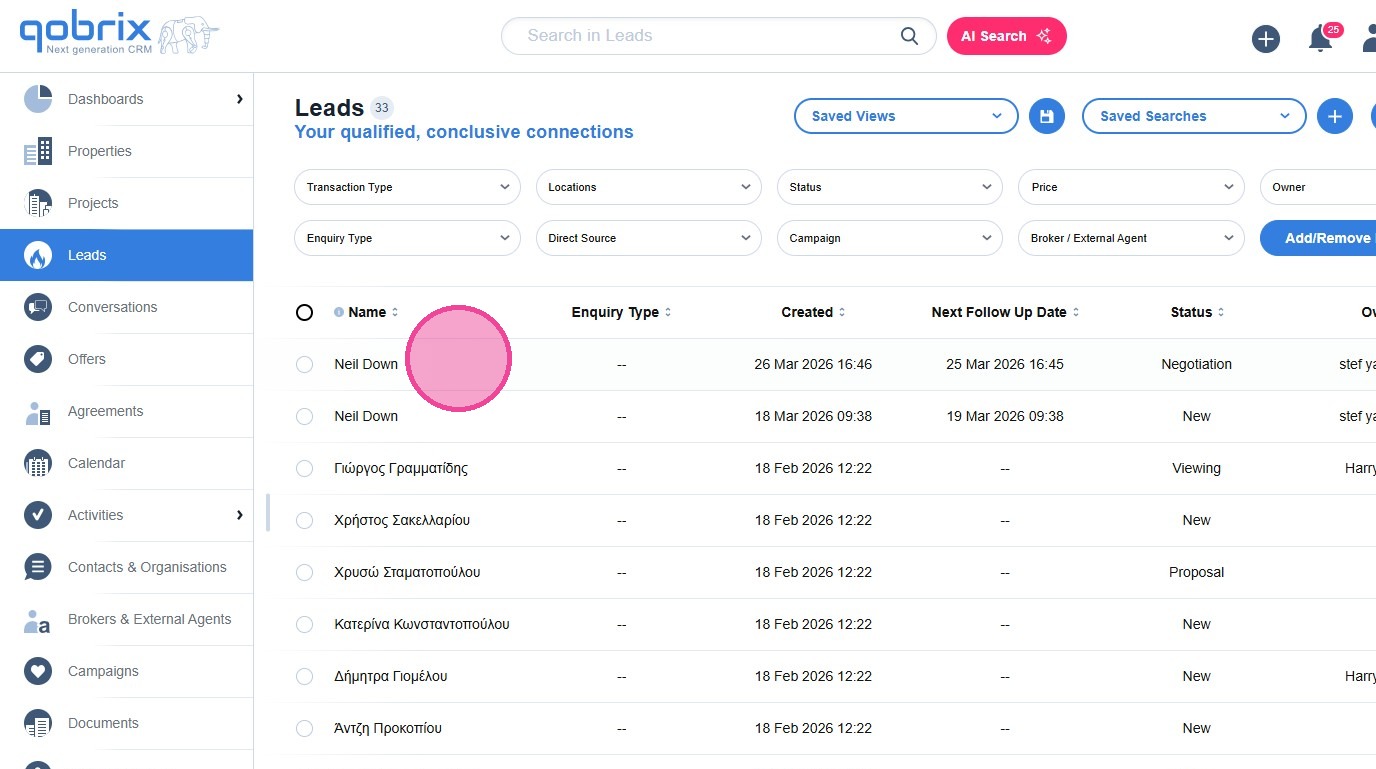
Open the relevant lead record from the Leads module.
3
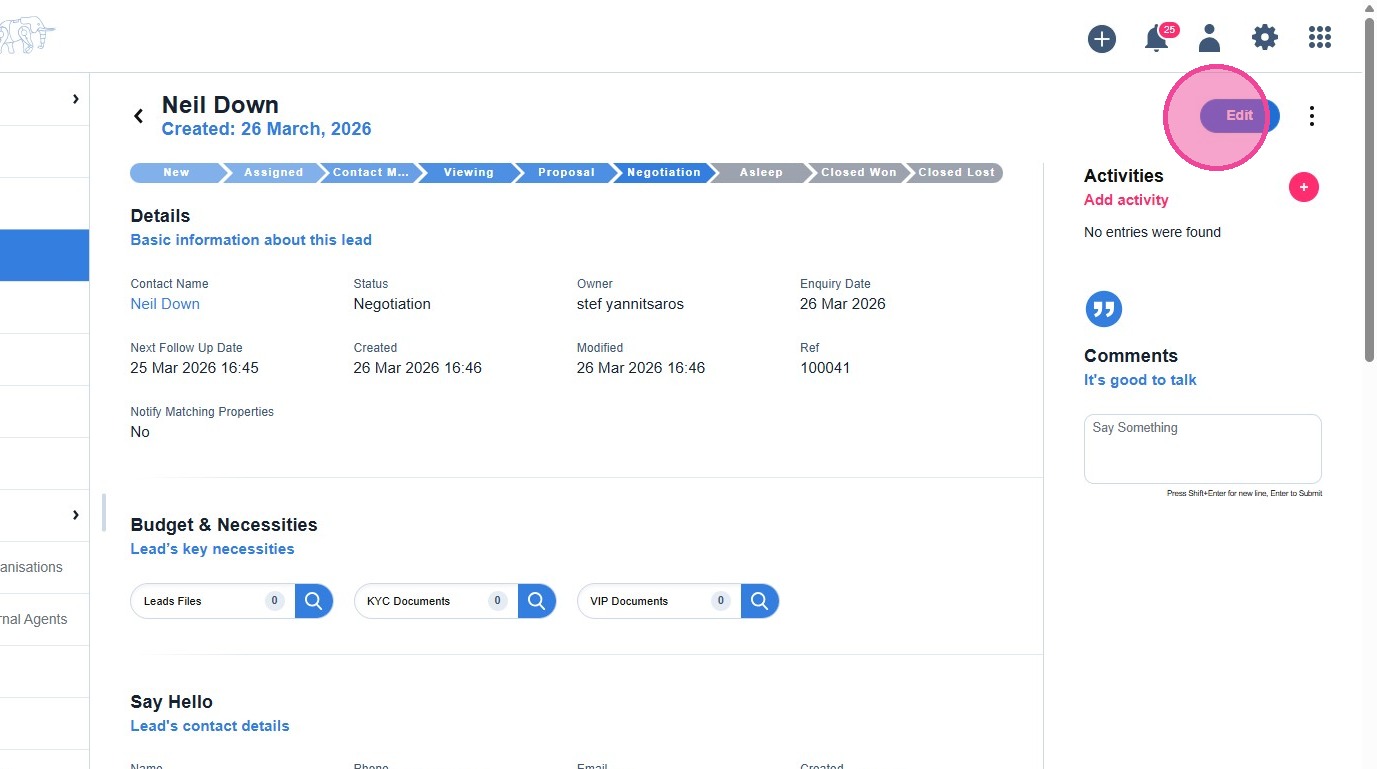
Click Edit to enter editing mode.
4
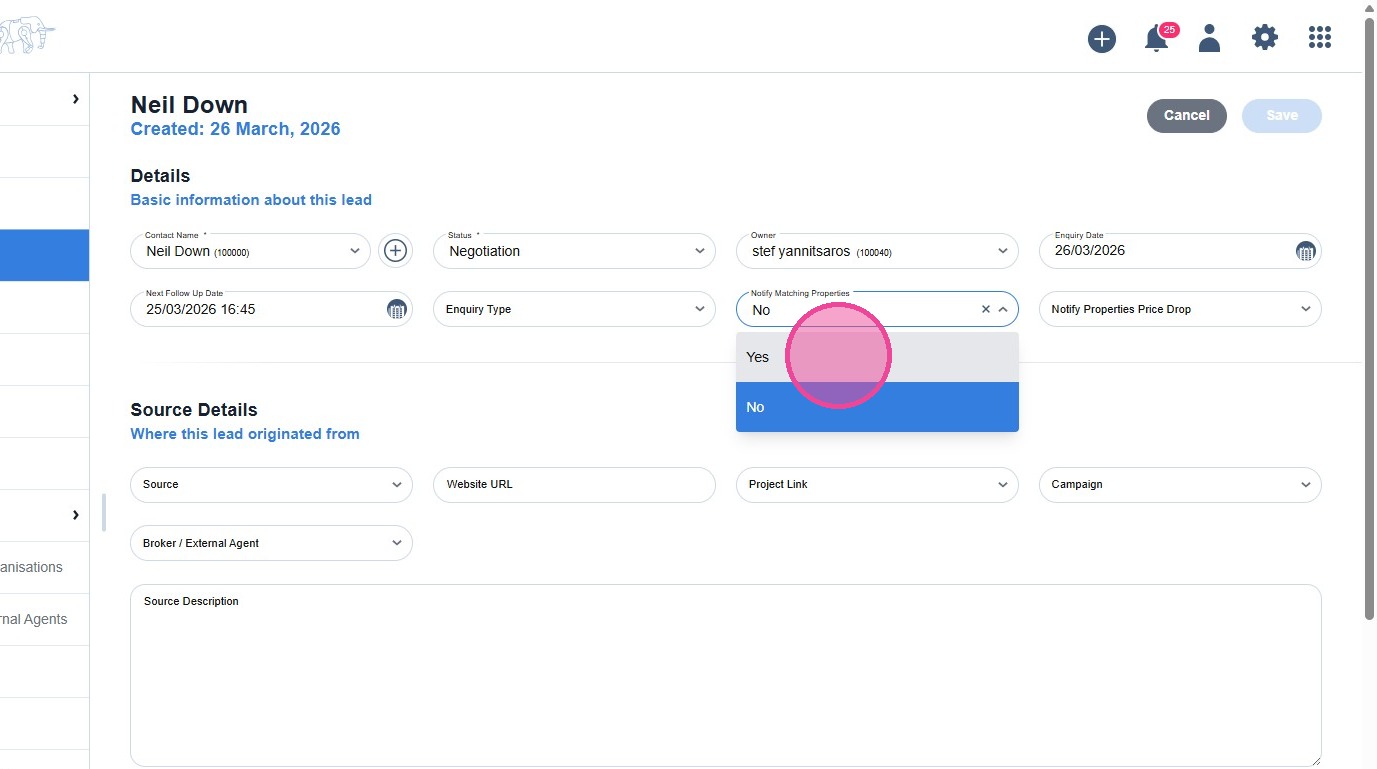
Notify Matching Properties
- The lead will receive an email whenever a newly listed property matches their search criteria, such as beds, baths, location, and price range.
5
Notify Properties Price Drop
- The lead will receive an email whenever a property they have expressed interest in is reduced in price.
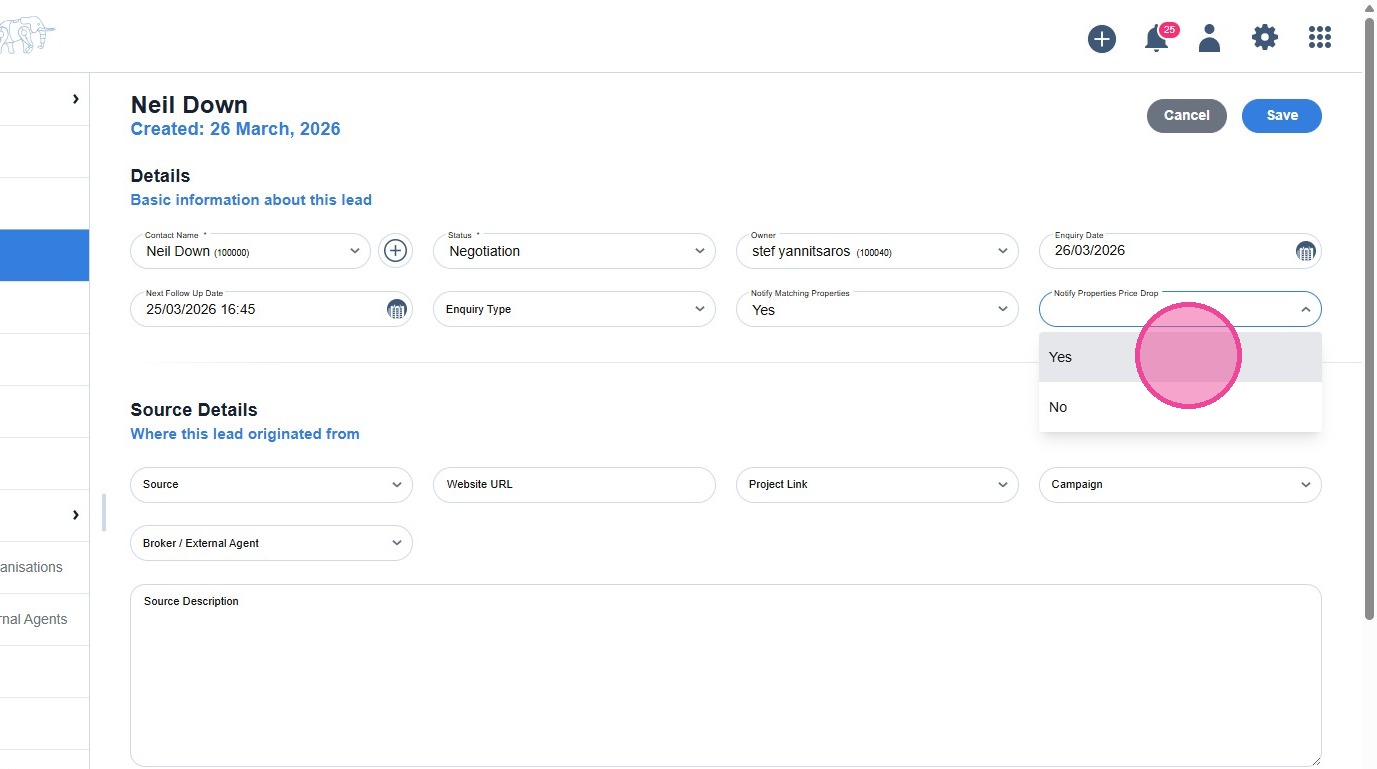
6
Click "Save" to apply the changes.
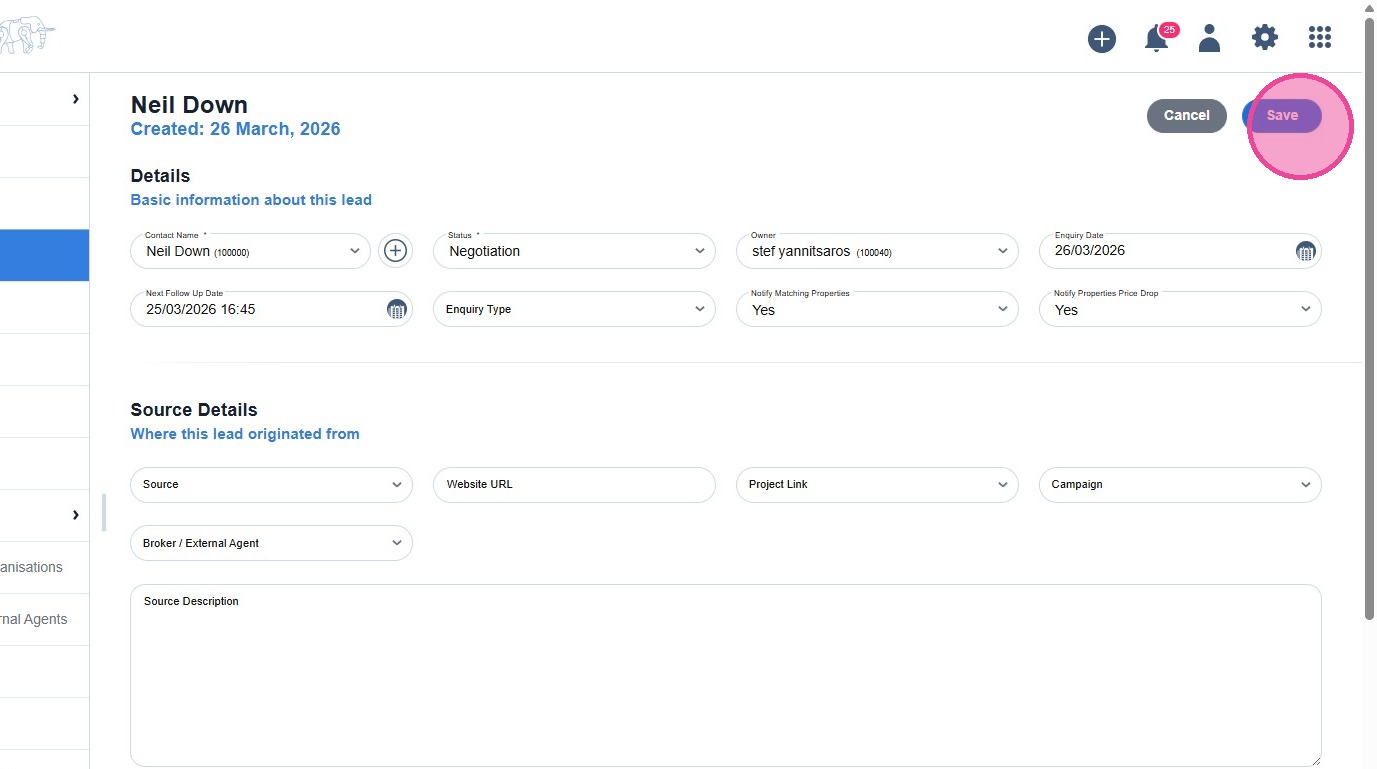
7
Automatic Consent for New Contacts
- If your agency has enabled Email Messaging Opt-in in Settings, the system handles consent automatically for new contacts.
- A new lead is added to the CRM and this is the first lead record created with that contact's details.
- The system automatically sends a consent request email to the contact asking permission to receive property alerts.
- If the contact provides consent, they are eligible to receive automated campaign emails going forward.
- You do not need to manually opt-in new contacts — consent collection is handled automatically.
- Tip: For existing contacts with more than one lead already in the system, the agent will need to confirm consent preferences manually on the lead record.