
How to Set Up Your Qobrix Mobile App
Quickly get started with the Qobrix Mobile App! Log in via QR code, download the app, and connect to your CRM in minutes. Includes simple troubleshooting tips for a smooth setup.
1
Get Your QR Code Ready
- Log into your Qobrix CRM on your computer
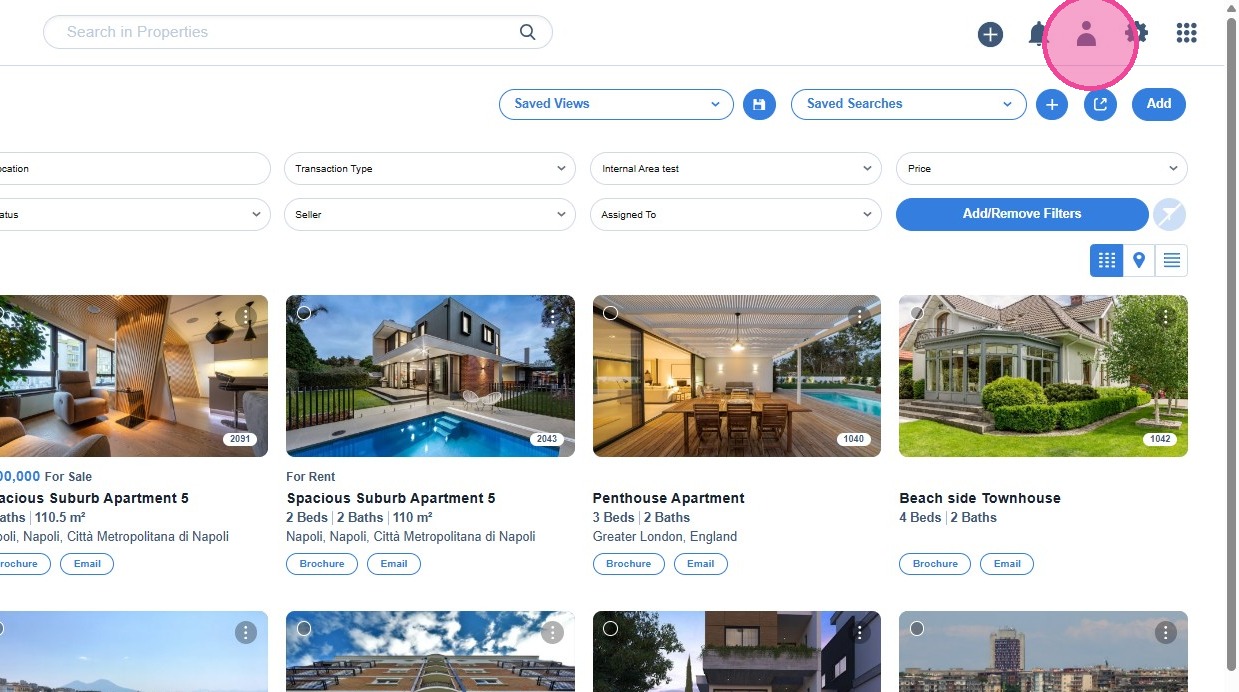
- Click your Profile icon in the top right corner.
2
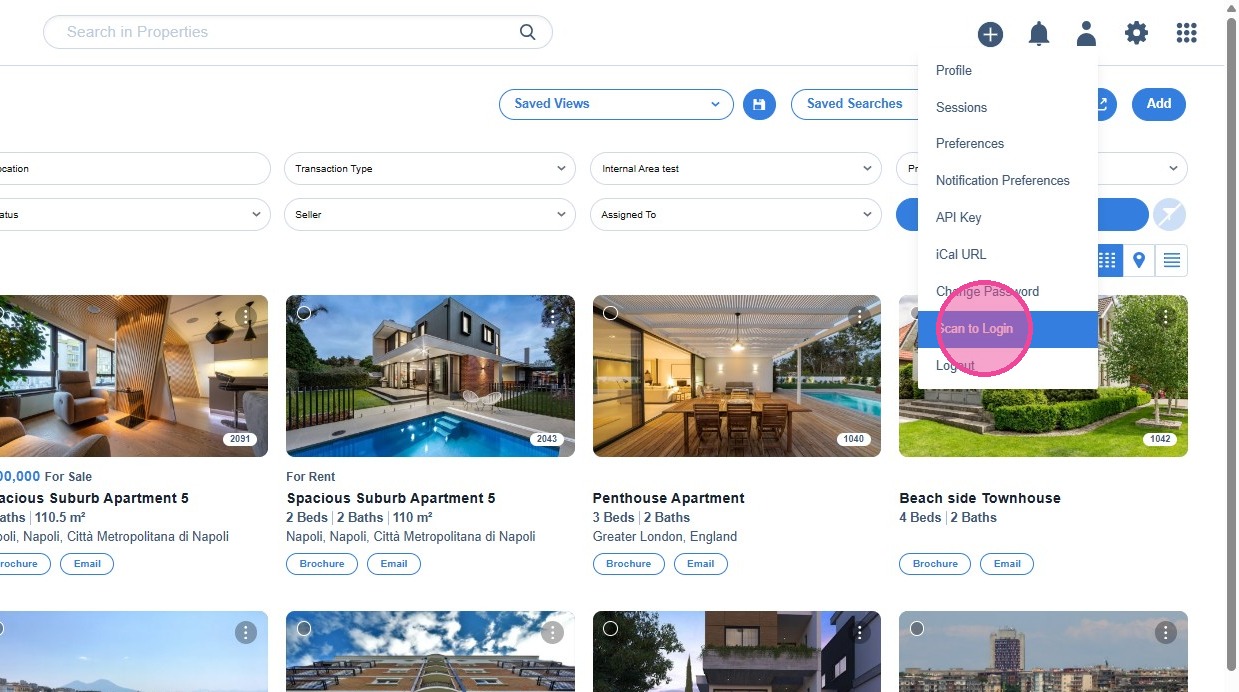
Select “Scan to Login” from the dropdown menu
3
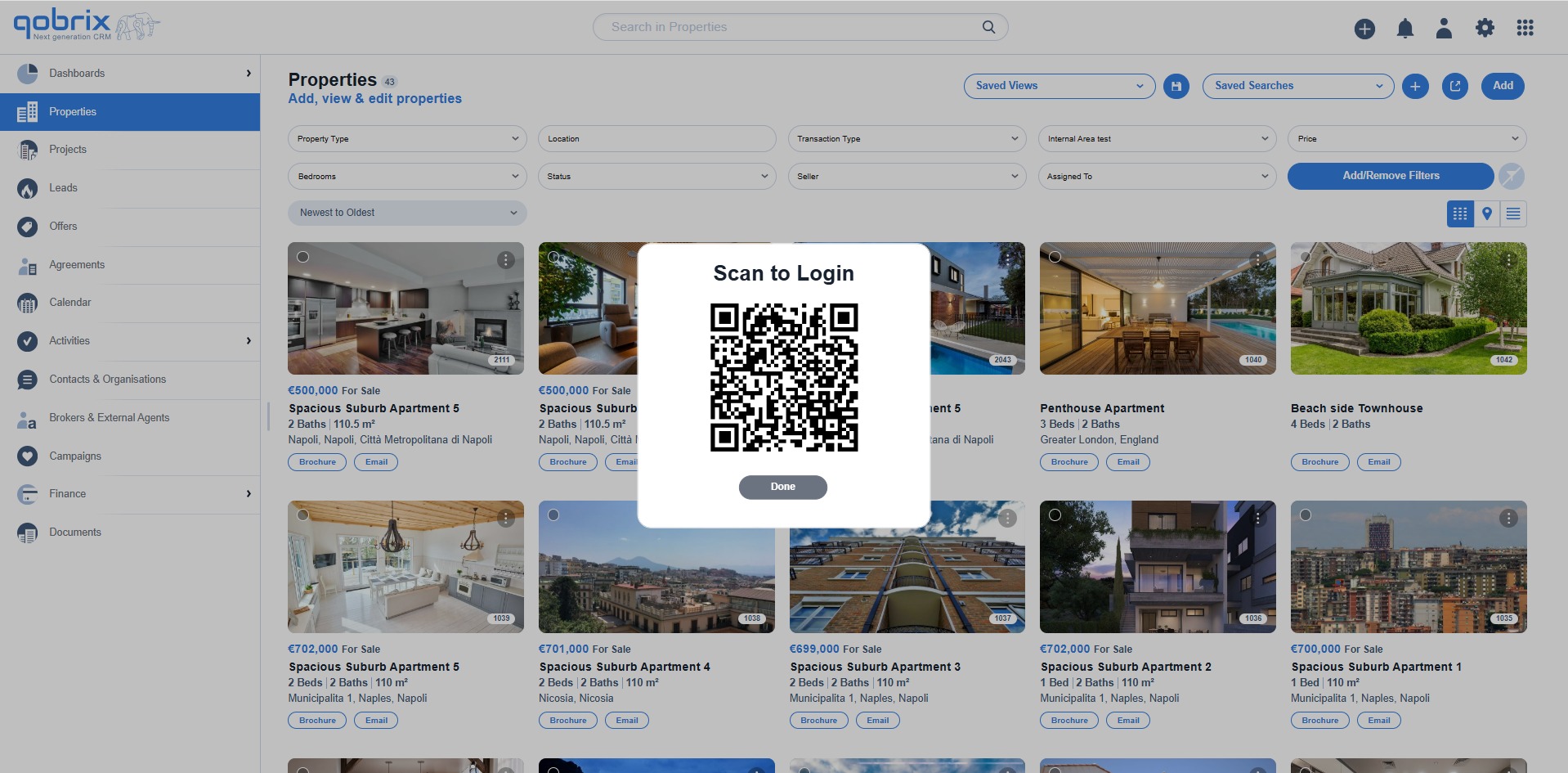
A popup window will appear with your QR code. Please let this window open.
4
Step 2: Set Up the Mobile App
- Download “Qobrix Real Estate CRM” from your app store
- iOS
- Android
5
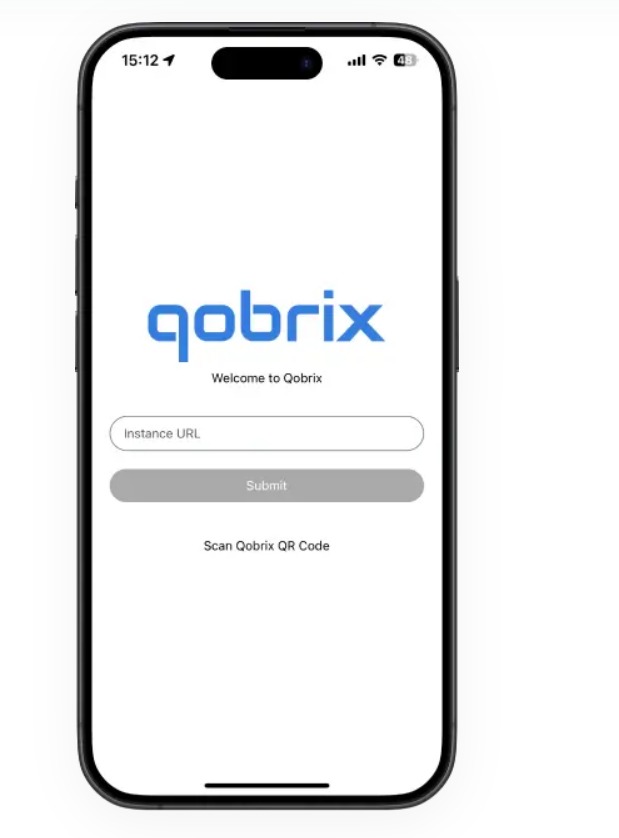
Open the app and you’ll have two options:
- Enter your Instance URL and tap “Submit”, OR
- Tap “Scan Qobrix QR Code” (recommended)
6
If using QR code method:
- Point your phone’s camera at the QR code on your computer screen
- Allow camera access if prompted
- Wait for successful connection
7
Quick Troubleshooting
- Make sure your internet connection is stable
- Ensure your camera lens is clean and the QR code is clearly visible
- If scan fails, try generating a new QR code from your CRM